![FullColor_Horizontal_Lockup.png]](https://knowledgebase.curbwaste.com/hs-fs/hubfs/FullColor_Horizontal_Lockup.png?height=40&name=FullColor_Horizontal_Lockup.png)
- Overview of Drivers in CurbPOS
- Adding new Drivers
- Assigning Driver to Order
- Edit Driver or Make Active/Inactive
Overview of Drivers in CurbPOS
- Drivers are not required, but can be added when needed.
- A Driver may be added for tracking purposes.
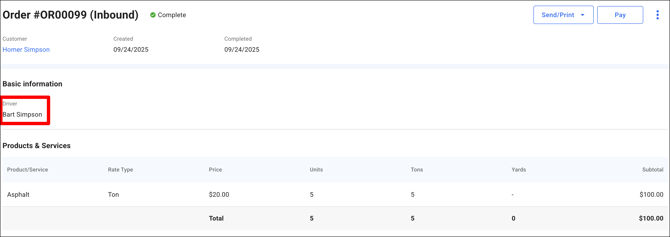
- Drivers show up under Basic Information on an Order form.
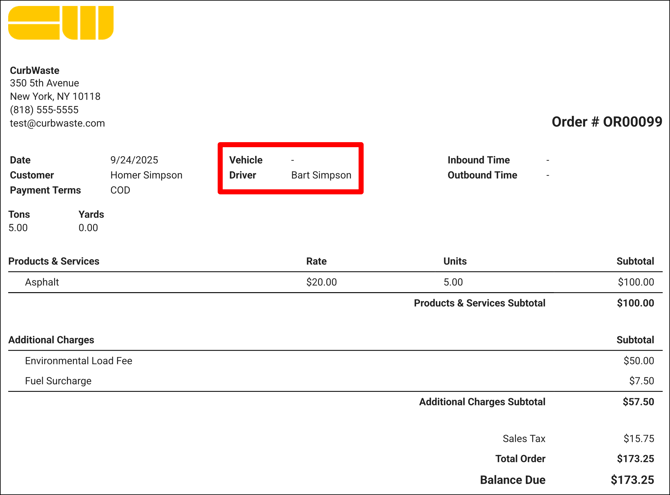
- Under printouts, they will show up under the Vehicle field.
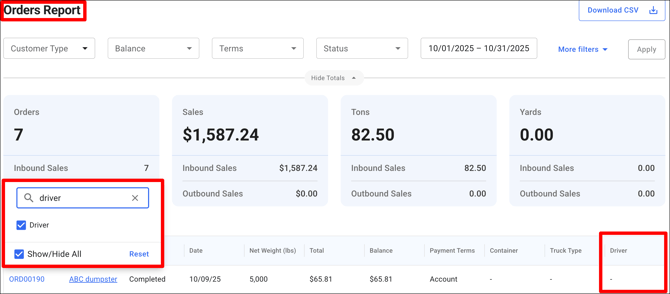
- You can also view Drivers in Reporting, such as the Orders Report
- Manage columns > toggle ON Drivers
Adding new Drivers
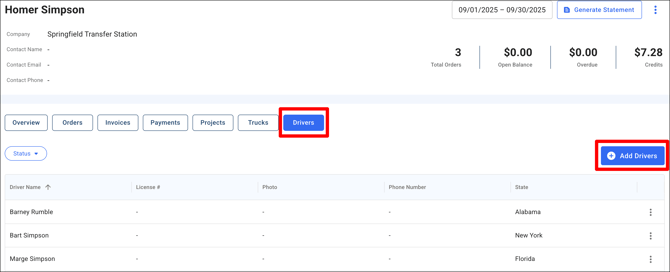
- Under Customers tab > search/select Customer > Drivers tab
- Click '+ Add Drivers'
- Enter Details
- First Name (required)
- Last Name (required)
- Phone
- Drivers License Number
- State (required)
- Save
NOTE: You can upload or take a picture of the driver's license to automatically fill out the driver's details.
Assigning Driver to Order
- When you Create Order, you can select the Driver using the drop down menu under Basic Info
- You also have the option to Add New Driver via while Creating a new Order

NOTE: You can adjust how Driver field shows up on the Order form
- Go to Settings > Configurations
- Under Order Fields, you have the following options for Driver
- Disable
- Hide (optional)
- Display (optional)
- Required

Edit Driver or Make Active/Inactive
- You can edit the Driver profile at any time, by clicking the 3 dots on the right.
- This also gives you the option to 'Deactivate' the Driver
- Under the Drivers tab, you can also filter for Active/Inactive Drivers

Updated 10/10/25