---
title: Managing Dispatched Routes
description: The purpose of this feature is to allow users to manage scheduled/dispatched routes more easily.
---
[Skip to content](https://knowledgebase.curbwaste.com/managing-scheduled-routes#main-content)
English
Show submenu for translations
![FullColor\_Horizontal\_Lockup.png\]](https://knowledgebase.curbwaste.com/hs-fs/hubfs/FullColor_Horizontal_Lockup.png?height=40&name=FullColor_Horizontal_Lockup.png)
Open main navigation
Close main navigation
- English
Show submenu for translations
- Go to curbwaste.com
Go to curbwaste.com
Access our new Knowledge Base here: https://intercom.help/curbwaste/en
- There are no suggestions because the search field is empty.
1. [CurbWaste Knowledge Base](https://knowledgebase.curbwaste.com/?hsLang=en)
2. [Routing](https://knowledgebase.curbwaste.com/routing?hsLang=en)
# Managing Dispatched Routes
The purpose of this feature is to allow users to manage scheduled/dispatched routes more easily.
Dispatchers can manage dispatched routes on a more granular level:
- On a single screen, quickly determine where to place on call pickups
- Improved routing speed, add, remove or move stops on a route with a couple clicks
- Adjust In Progress routes to account for driver delays and maintain your customer service edge with last minute on call additions to routes
- Ensure efficient portalet routes by adding delivery and removal orders to a scheduled route
- Easily adjust your routes for holidays
This feature gives drivers:
- Visibility to changes in the route through notifications
- Ability to complete delivery and removals without exiting and pausing the route, ensuring your time is not spent back tracking for one off changes
- Drivers can leave stops uncompleted when they are unable to get to it. Ensuring the dispatchers can review these in the morning and ensure they get addressed
Route plans **must be sent to dispatch** before you can make any of the adjustments detailed below.
### Table of Contents
1. [Manage Driver Schedules vs. Dispatched Routes](https://knowledgebase.curbwaste.com/managing-scheduled-routes#manage-driver-schedules)
2. [Assigning and Removing On-Call Orders from Routes](https://knowledgebase.curbwaste.com/managing-scheduled-routes#assigning)
3. [Moving Stops Between Dispatched Routes](https://knowledgebase.curbwaste.com/managing-scheduled-routes#moving)
4. [Managing Holidays](https://knowledgebase.curbwaste.com/managing-scheduled-routes#holidays)
5. [Resequencing Stops](https://knowledgebase.curbwaste.com/managing-scheduled-routes#resequencing)
6. [Numbering of Added/Moved/Resequenced Stops](https://knowledgebase.curbwaste.com/managing-scheduled-routes#numbering)
### Manage Driver Schedules vs. Dispatched Routes
In Dispatch, there is now an option to manage your dispatched routes. This is where you will go to view your driver's progress and make edits to their dispatched routes.
Nothing has changed with the Driver Schedules view - you are still be able to view routes on your drivers' schedules, as well as dispatch product delivery/removal orders if you wish.
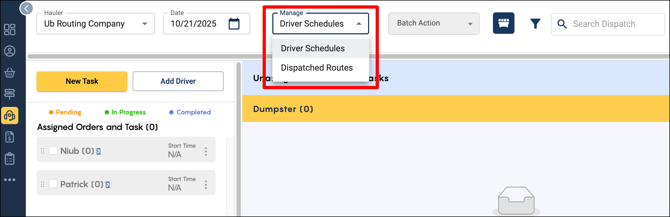
Note: Product Delivery/Removal orders can still be dispatched and completed in the **Driver Schedules** view. Some users may prefer this view for product deliveries/removals if they are done outside of a regular route.
#### List View
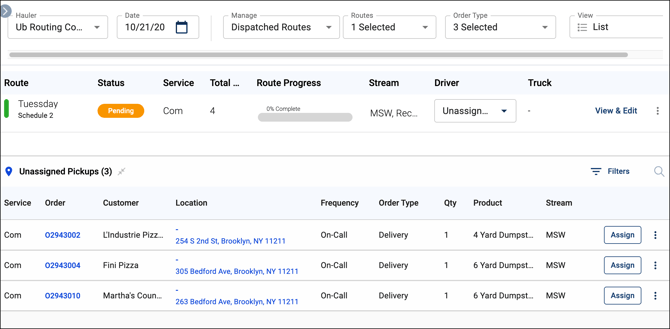
In the Dispatched Routes module, you have the option to view your routes and unassigned pickups as a List or on a Map.The top bar allows you to change the Hauler, Date, Routes, and Order Types you want to see.
Below that you can see the status and progress of your dispatched routes. At the bottom will show a list of your Unassigned Pickups - note that this list only contains any unassigned **On-Call** orders including product delivery/removal orders.
#### Map View
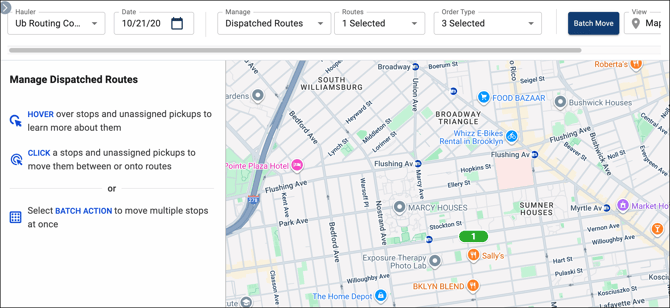
In Map View, the same top bar of dropdown menus persists. All of your routes and unassigned pickups are now displayed on a map. Zoom out to get a better view of the location of your stops.
### Assigning and Removing On-Call Orders from Routes
#### List View
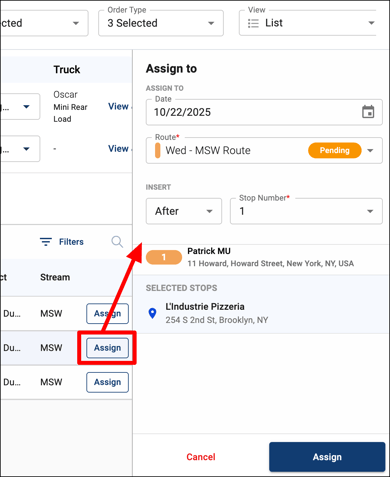
In List View, scroll down to the Unassigned Pickups list. Click **Assign** and a flyout panel will appear and allow you to choose the date, route, and position of the pickup.
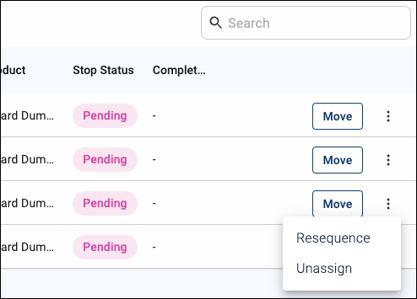
To **remove** the stop from your route, click **View & Edit** next to the route. Click the three dot menu on the right, and click Unassign.
#### Map View
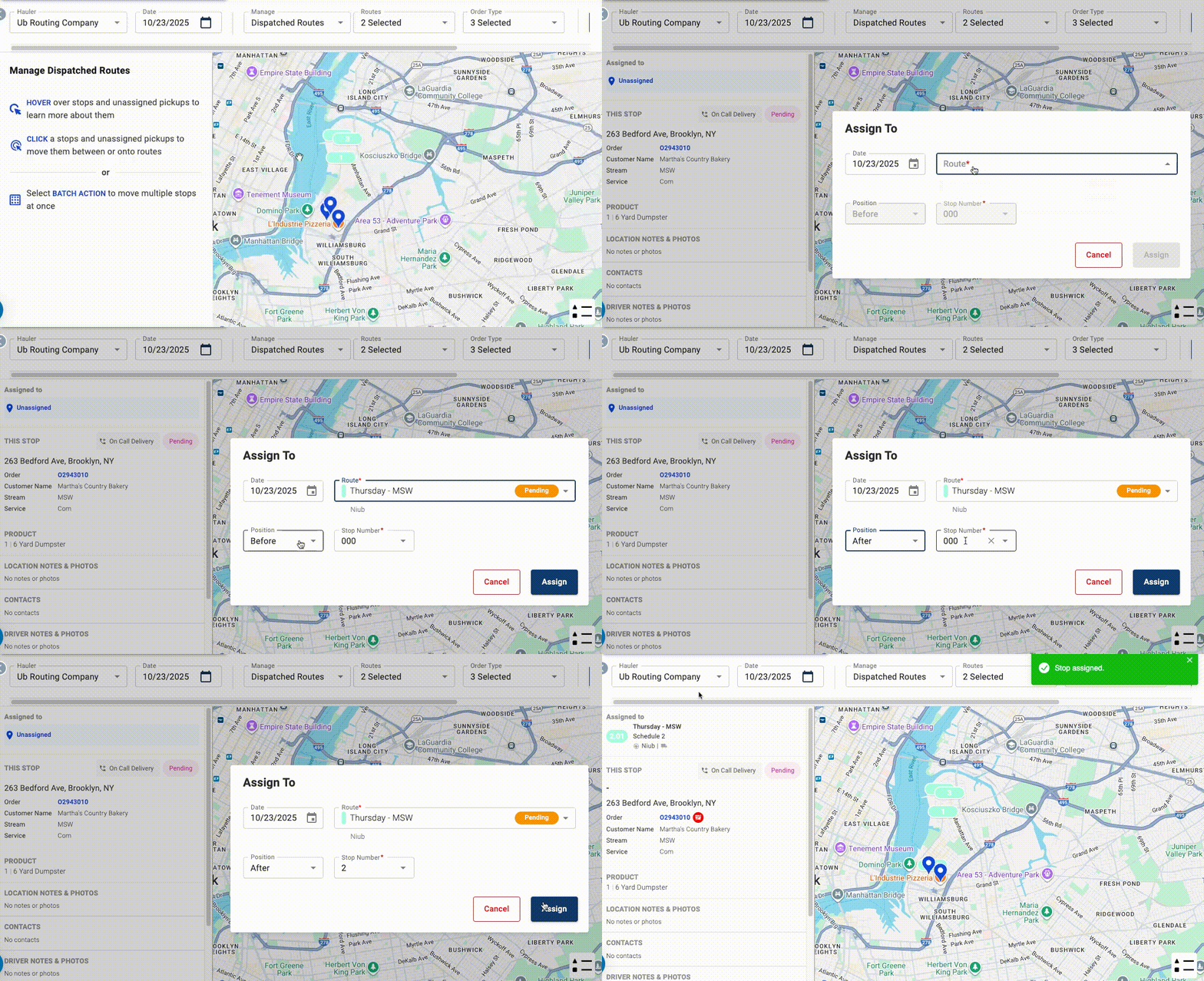
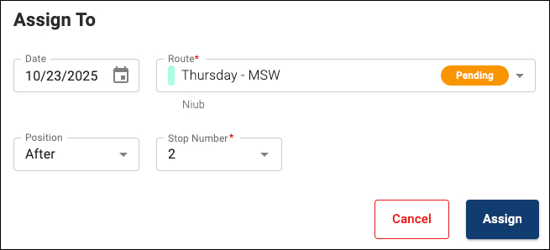
In Map View, find the unassigned stop and click on the pin. Then, select the date, route, and position of the stop.
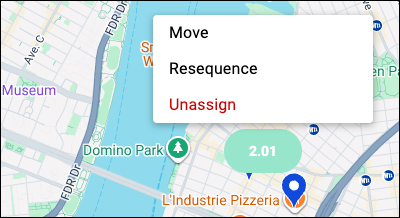
To **remove** the stop from your route, find the stop on the map and click on the pin. Then, click Unassign.
### Moving Stops Between Dispatched Routes
#### List View
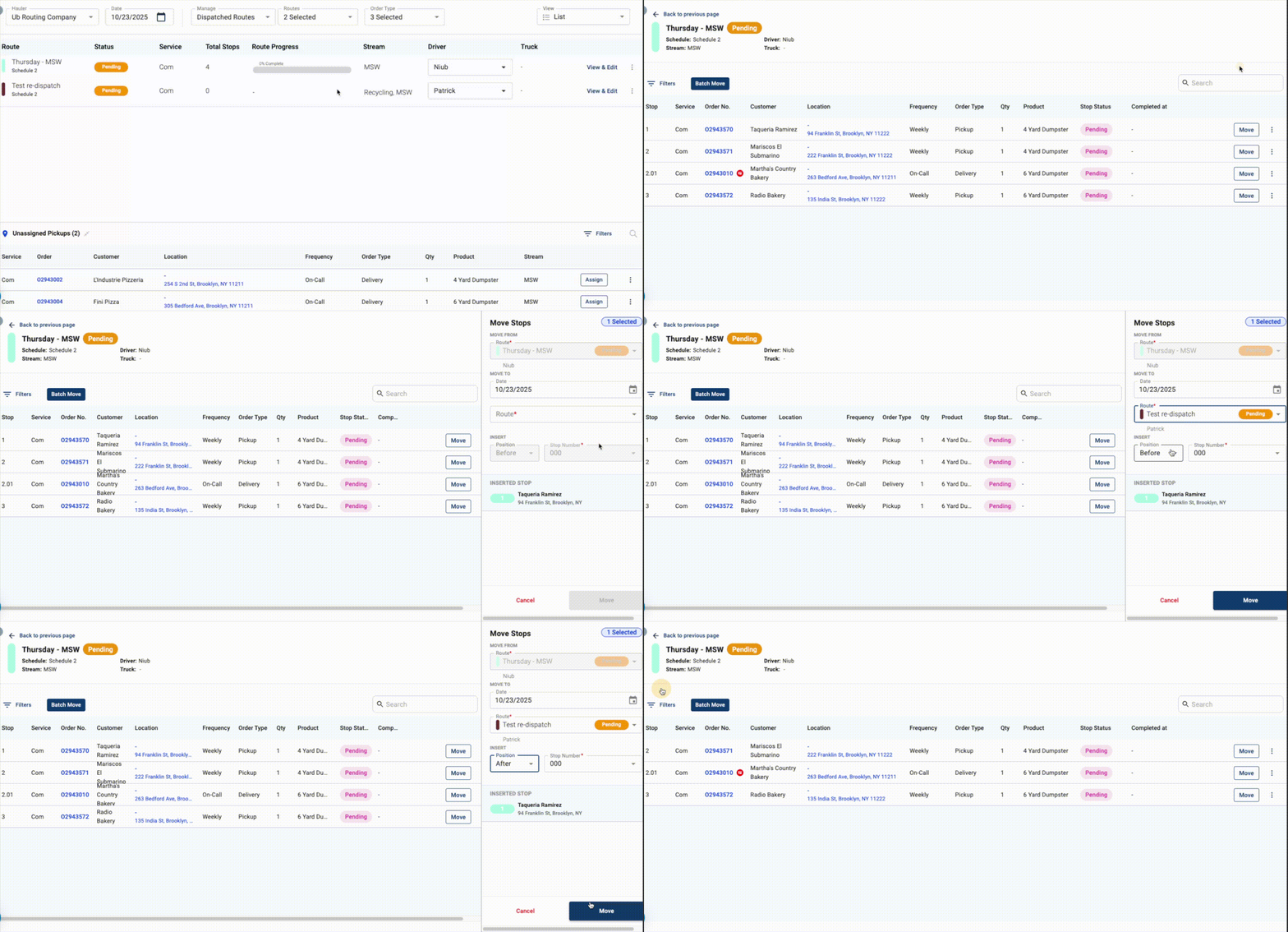
Click **View & Edit** on your desired route. Then, click **Move** on the stop, and select the route.
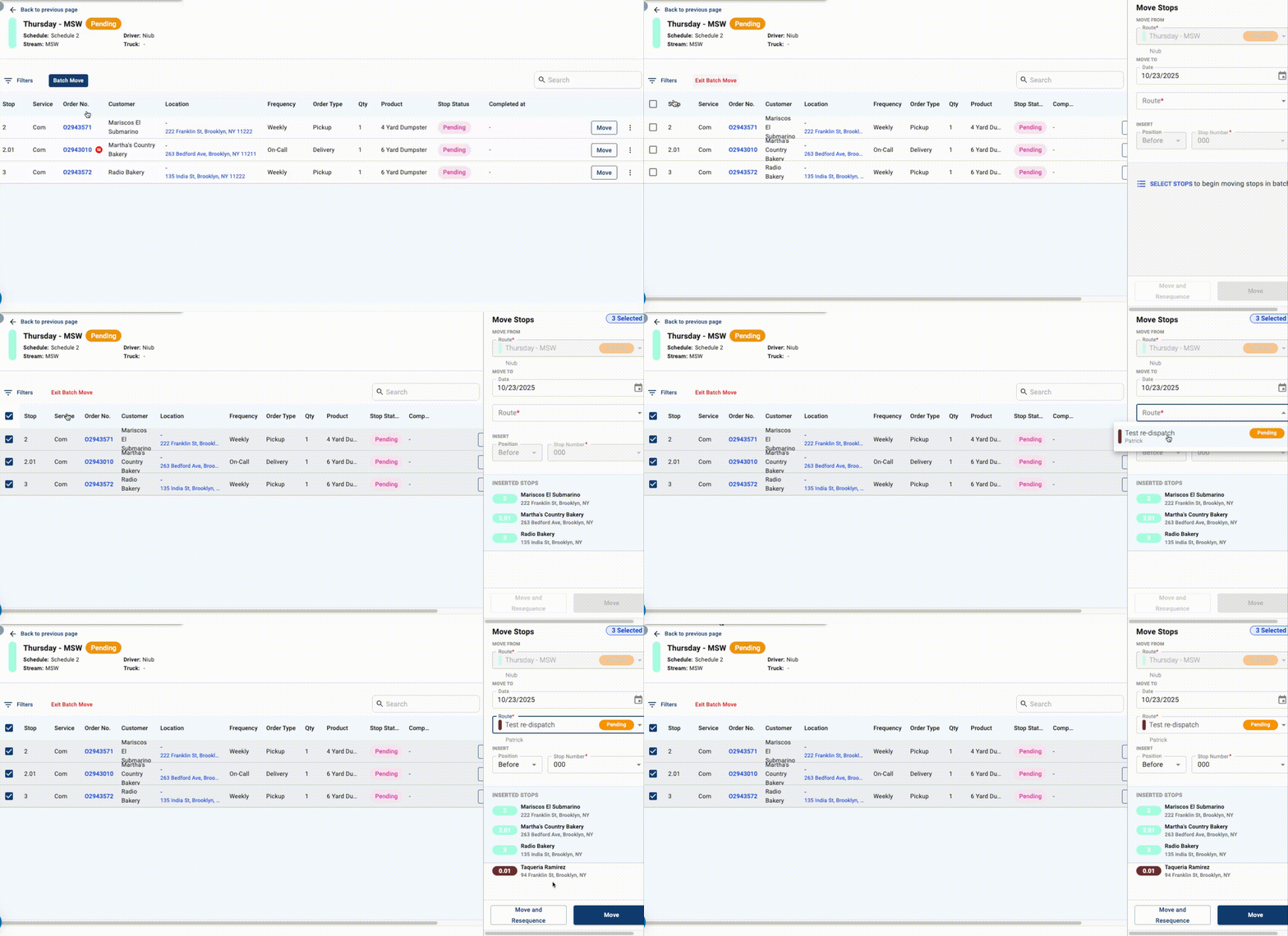
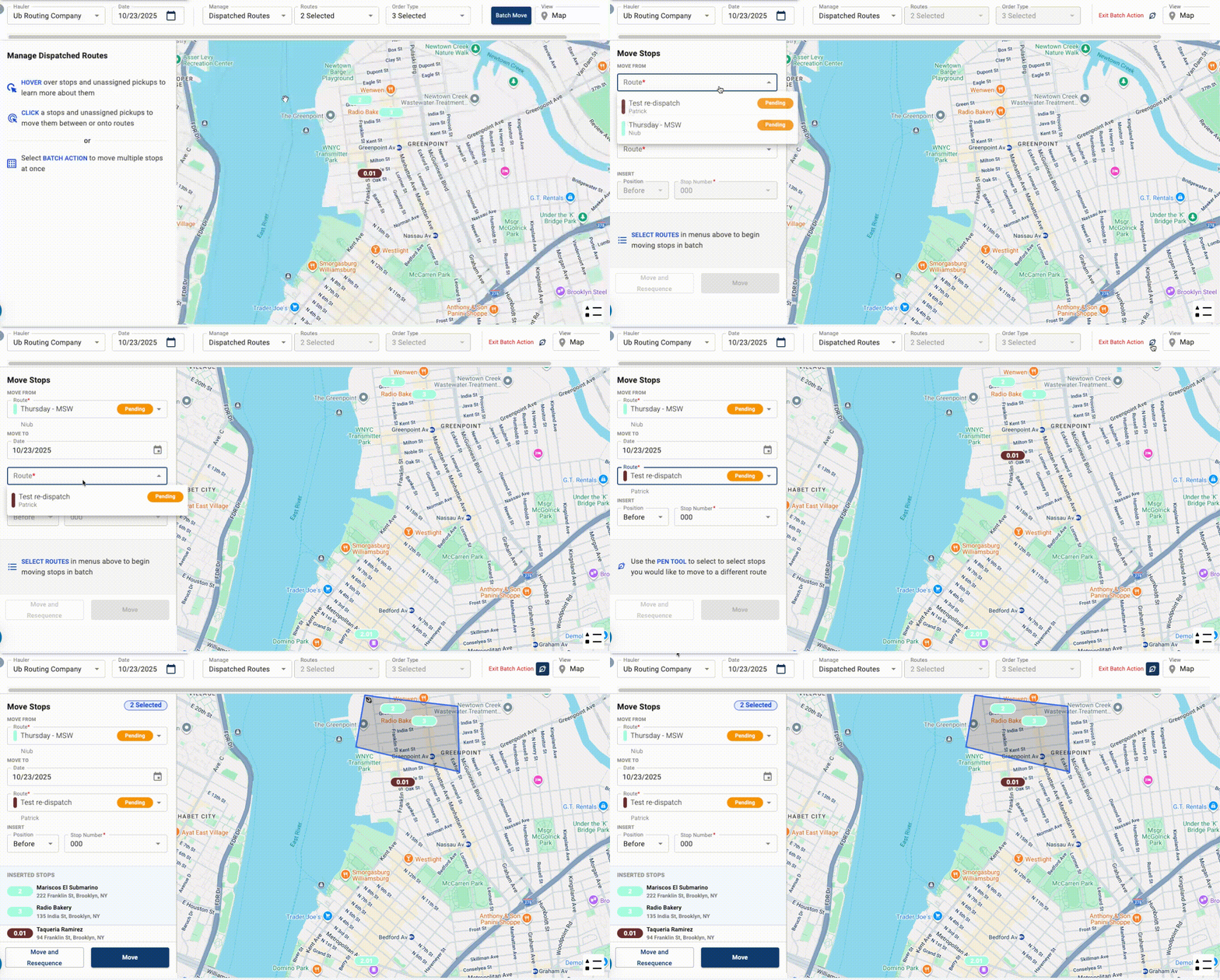
To move multiple stops at once, click **Batch Move**, select the stops, and choose the route.
#### Map View
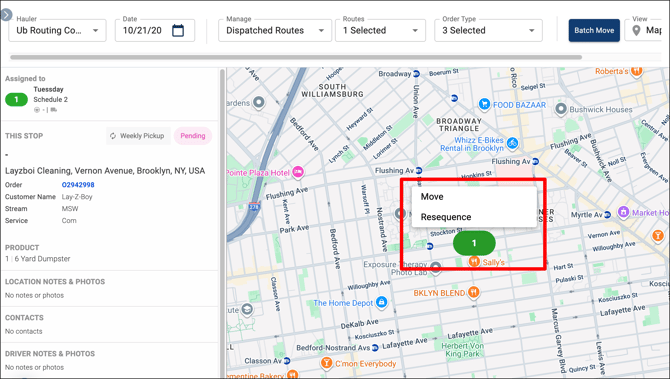
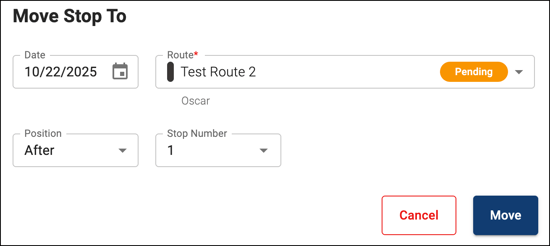
Find the stop on the map and click on the pin. Then, click **Move** and select the route.
****
To move multiple stops at once, click **Batch Move**. Select the MOVE FROM and MOVE TO routes and then use the pen tool to select the stops.
### Managing Holidays
Moving your route(s) from one day to the next can be accomplished by moving stops from one dispatched route to another. You can easily shift your entire route to a different day or shift stops across multiple routes throughout the week.
For example, let's say you need to move your Thursday routes to Friday to accommodate for Thanksgiving. Here's how you would do it:
1. Start in the Route planning tab.
2. Dispatch your Thursday route as usual.
3. Create a Friday route and make sure the **Service** and **Waste Stream(s)** match your Thursday route.
4. Do not add any stops to the Friday route. Leave it empty.
5. Dispatch the Friday route.
6. Go to Dispatch and select Manage Dispatched Routes.
7. Select Thursday for the **Date** and make sure you are in **List** view.
8. Select your Thursday route and click **View & Edit**.
9. Click **Batch Move** and select all stops.
10. Select the date and route you would like to move the stops to, which in this case is the empty Friday route.
11. Click **Move**.
### Resequencing Stops
#### List View
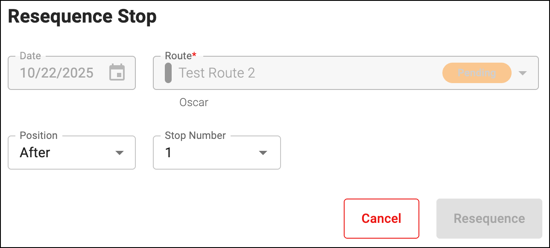
Click **View & Edit** on your desired route. Then, click the three dots menu of the stop, and select **Resequence**.

Select the **Position** and **Stop** **Number** and click **Resequence**.
#### Map View
Find the stop you would like to Resquence on the map. Click on the pin, and then click **Resequence**.

### Numbering of Added/Moved/Resequenced Stops
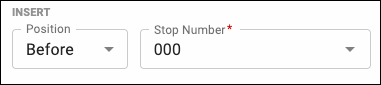
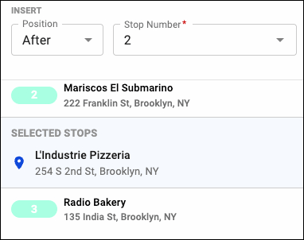
When adding, moving, or resequencing stops, you must select a target stop number.
- To insert the stop at the beginning of the route, choose **Before 000**
****
- To insert the stop at the end of the route, choose **After 999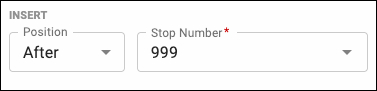**
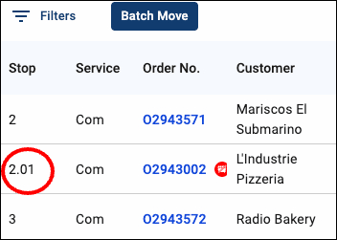
When you insert a stop before or after an existing stop, the existing stop numbers will not change. Instead, the inserted stop will receive a decimal place number in ascending order. For example, a stop added after stop 2 will receive stop number 2.01.
*Updated: 10/24/25*
- [General](https://knowledgebase.curbwaste.com/general?hsLang=en#main-content)
- [Feature Release Communications](https://knowledgebase.curbwaste.com/general?hsLang=en#feature-release-communications)
- [CurbWaste Terminology](https://knowledgebase.curbwaste.com/general?hsLang=en#curbwaste-terminology)
- [Frequently Asked Questions (FAQ)](https://knowledgebase.curbwaste.com/frequently-asked-questions-faq?hsLang=en)
- [Settings and Configuration](https://knowledgebase.curbwaste.com/settings-and-configuration?hsLang=en#main-content)
- [Resources](https://knowledgebase.curbwaste.com/settings-and-configuration?hsLang=en#resources)
- [General Settings](https://knowledgebase.curbwaste.com/settings-and-configuration?hsLang=en#general-settings)
- [Pricing Configurations](https://knowledgebase.curbwaste.com/settings-and-configuration?hsLang=en#pricing-configurations)
- [Integrations](https://knowledgebase.curbwaste.com/settings-and-configuration?hsLang=en#integrations)
- [Dashboard](https://knowledgebase.curbwaste.com/dashboard?hsLang=en)
- [Orders](https://knowledgebase.curbwaste.com/orders?hsLang=en#main-content)
- [Driver Mobile App Workflows](https://knowledgebase.curbwaste.com/orders?hsLang=en#driver-mobile-app-workflows)
- [Order Form Fields](https://knowledgebase.curbwaste.com/orders?hsLang=en#order-form-fields)
- [Customers](https://knowledgebase.curbwaste.com/customers?hsLang=en)
- [Billing](https://knowledgebase.curbwaste.com/billing?hsLang=en#main-content)
- [Quickbooks](https://knowledgebase.curbwaste.com/billing?hsLang=en#quickbooks)
- [Reporting](https://knowledgebase.curbwaste.com/reporting?hsLang=en#main-content)
- [Billing Reports](https://knowledgebase.curbwaste.com/reporting?hsLang=en#billing-reports)
- [Service Reports](https://knowledgebase.curbwaste.com/reporting?hsLang=en#service-reports)
- [Inventory Management](https://knowledgebase.curbwaste.com/inventory-management?hsLang=en)
- [Locations](https://knowledgebase.curbwaste.com/locations?hsLang=en)
- [Routing](https://knowledgebase.curbwaste.com/routing?hsLang=en)
- [Dispatch](https://knowledgebase.curbwaste.com/dispatch?hsLang=en)
- [CurbPOS](https://knowledgebase.curbwaste.com/curbpos?hsLang=en#main-content)
- [Billing](https://knowledgebase.curbwaste.com/curbpos?hsLang=en#billing)
- [Drivers](https://knowledgebase.curbwaste.com/curbpos?hsLang=en#drivers)
# CurbWaste
curbwaste.com Help Center
Copyright © 2026, CurbWaste