![FullColor_Horizontal_Lockup.png]](https://knowledgebase.curbwaste.com/hs-fs/hubfs/FullColor_Horizontal_Lockup.png?height=40&name=FullColor_Horizontal_Lockup.png)
Table of Contents
Overview
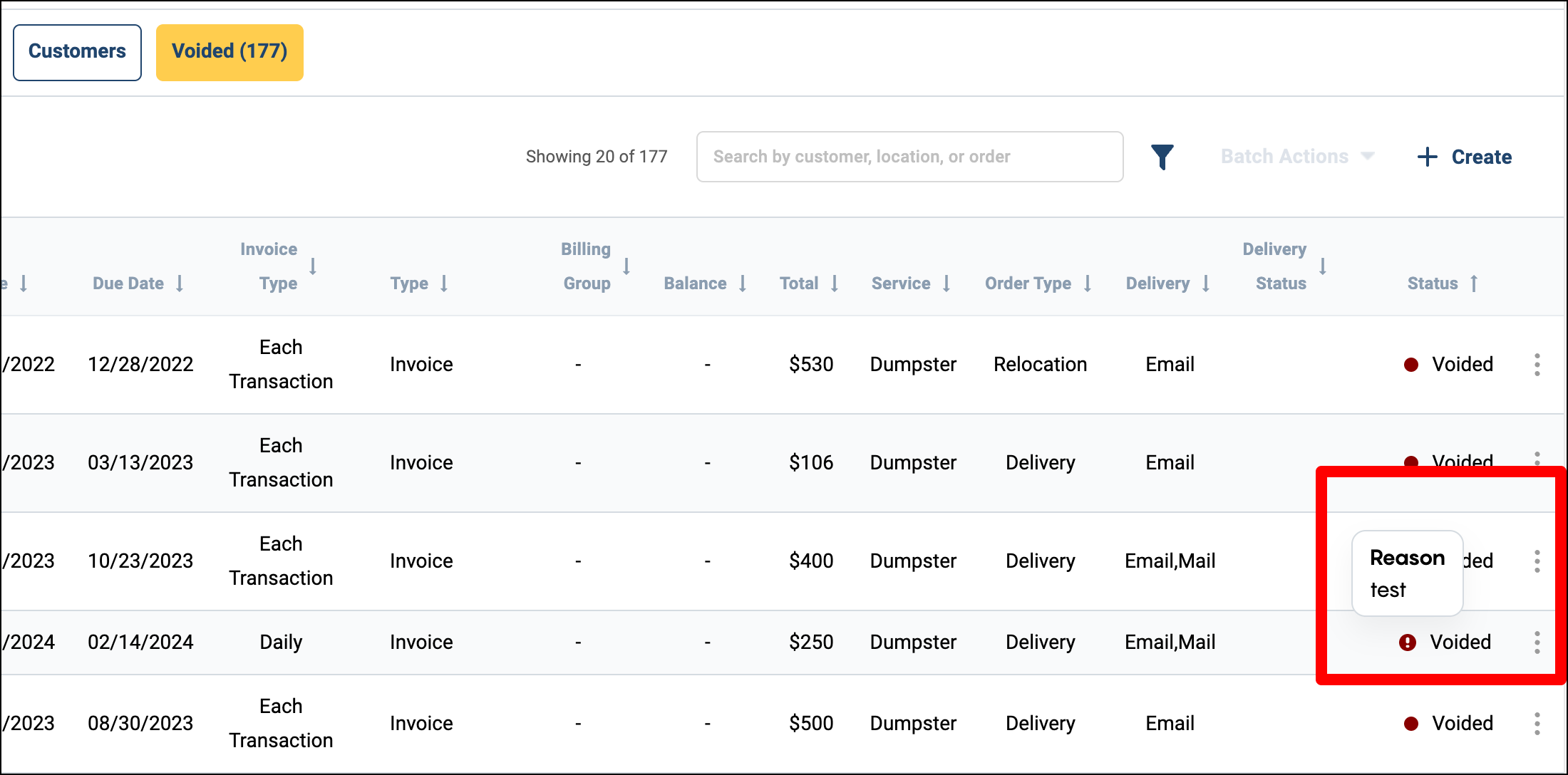
- You will find the Voided tab under the Billing Queue
- When voiding Invoices OR Payments, you'll be prompted to add a Void Reason
- This helps maintain an audit trail and provides context for the voided transaction
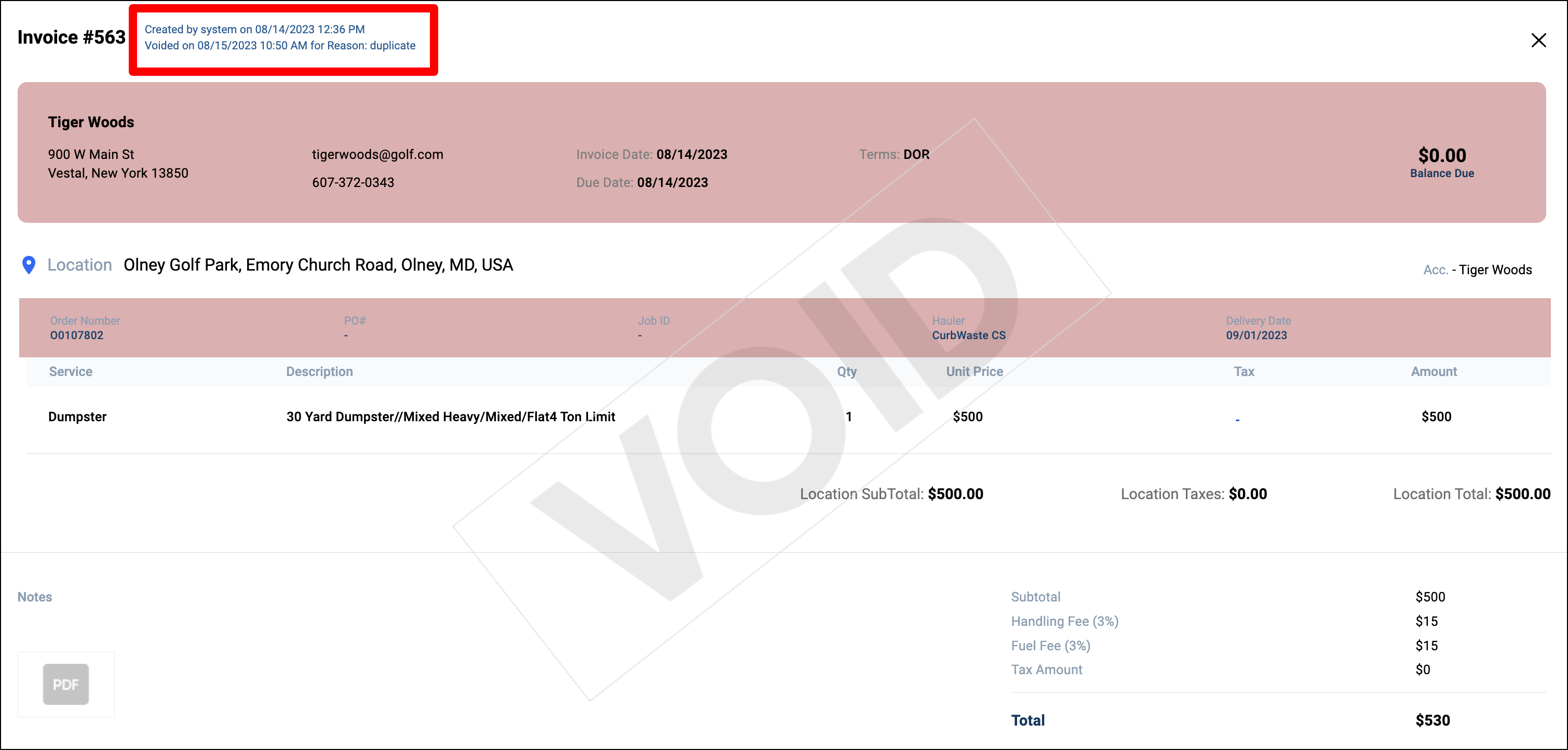
- You can view the void reason by either hovering over the exclamation icon next to the voided item or by opening the voided invoice directly
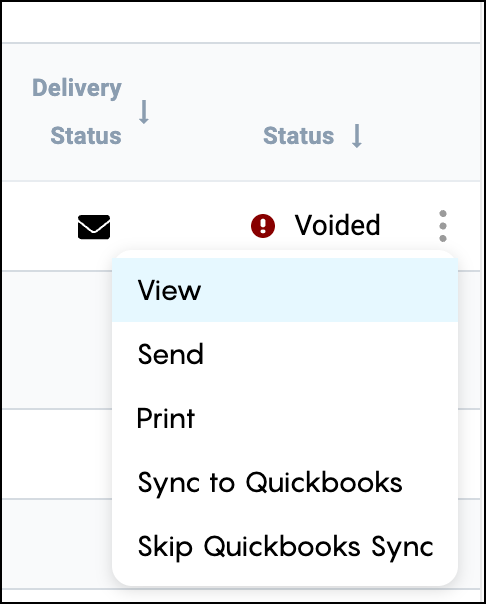
- Clicking the 3 dots will give you options
- View
- Send
- Sync to Quickbooks
- Skip Quickbooks Sync
Void vs. Delete
- For Cash or Check payments, you can choose to Void OR Delete a payment
- Deleting the payment will remove it from the system, whereas Voiding will allow you to still view it under the Voided tab
Different situations to be aware of when Voiding
-
- You cannot void a PAID Invoice, only invoices in OPEN/OVERDUE status
- Anything auto-voided by the system will not show a reason
- Anything voided by a user will require a reason to be entered
- When invoices are merged, a new consolidated invoice is created and the original invoices are voided.
WARNING: Credit Card payments cannot be voided, only refunded
Syncing Void items
-
- If an item is already synced and you void it, it will need to be synced again
NOTE: Have you accidentally voided something? Reach out to support to un-void it for you
Last updated 10/24